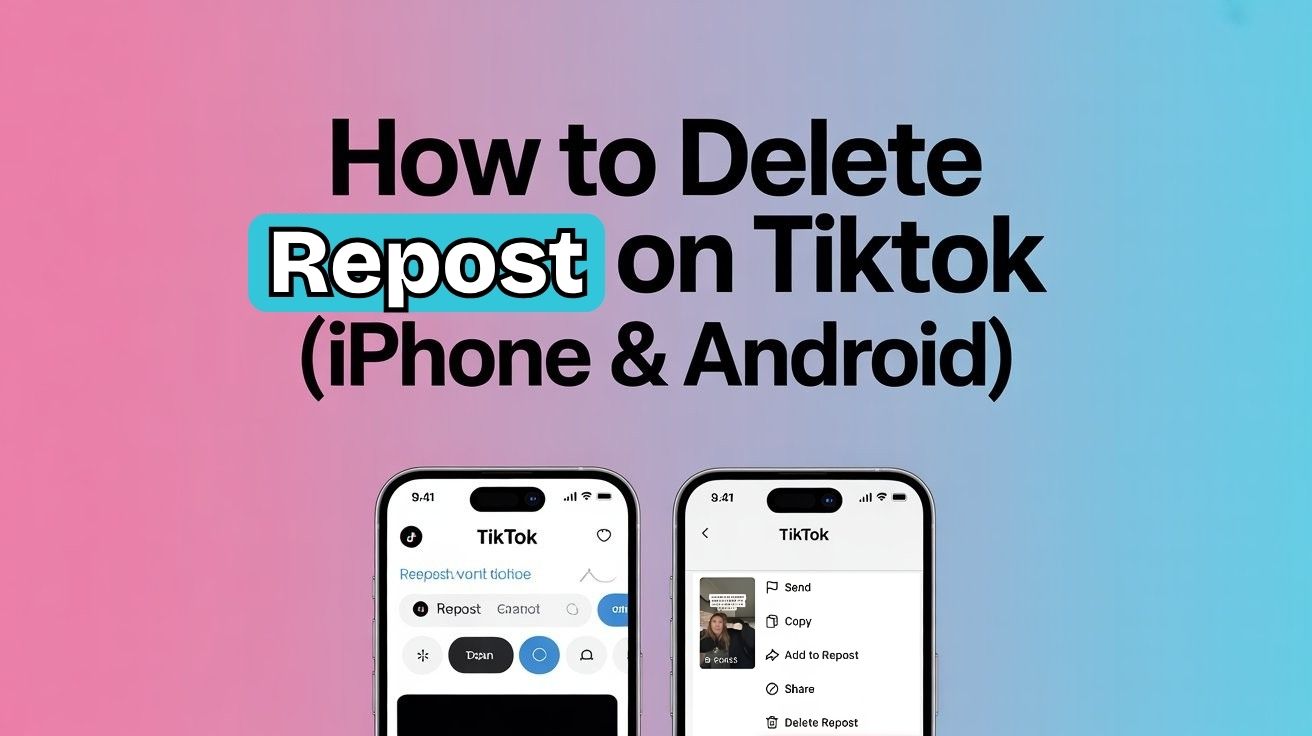
Accidentally reposted something on TikTok? Don't worry, removing a repost is quick and easy once you know where to look. Whether you're on an iPhone, an Android device, or just want to clean up your profile, this guide walks you through everything step by step.
Good news, undoing it takes about five seconds. But the annoying part, TikTok hides this option in a slightly annoying spot. Here's exactly where to find it.
Wait, What Actually Is a Repost on TikTok?
When you repost a video on TikTok, it gets shared directly with your followers, similar to a retweet on X (formerly Twitter). Unlike a regular share, a repost shows up in your followers' feeds under your name, which means it can feel like your own content even though it isn't.
The tricky part? TikTok doesn't show reposts on your public profile grid. They're "invisible" to visitors, but your followers still see them in their feeds. That's exactly why so many people want to remove them, either they reposted by mistake, or they simply don't want that video circulating under their name anymore.
Here's How to Delete a Repost on TikTok (Quickest Method First)
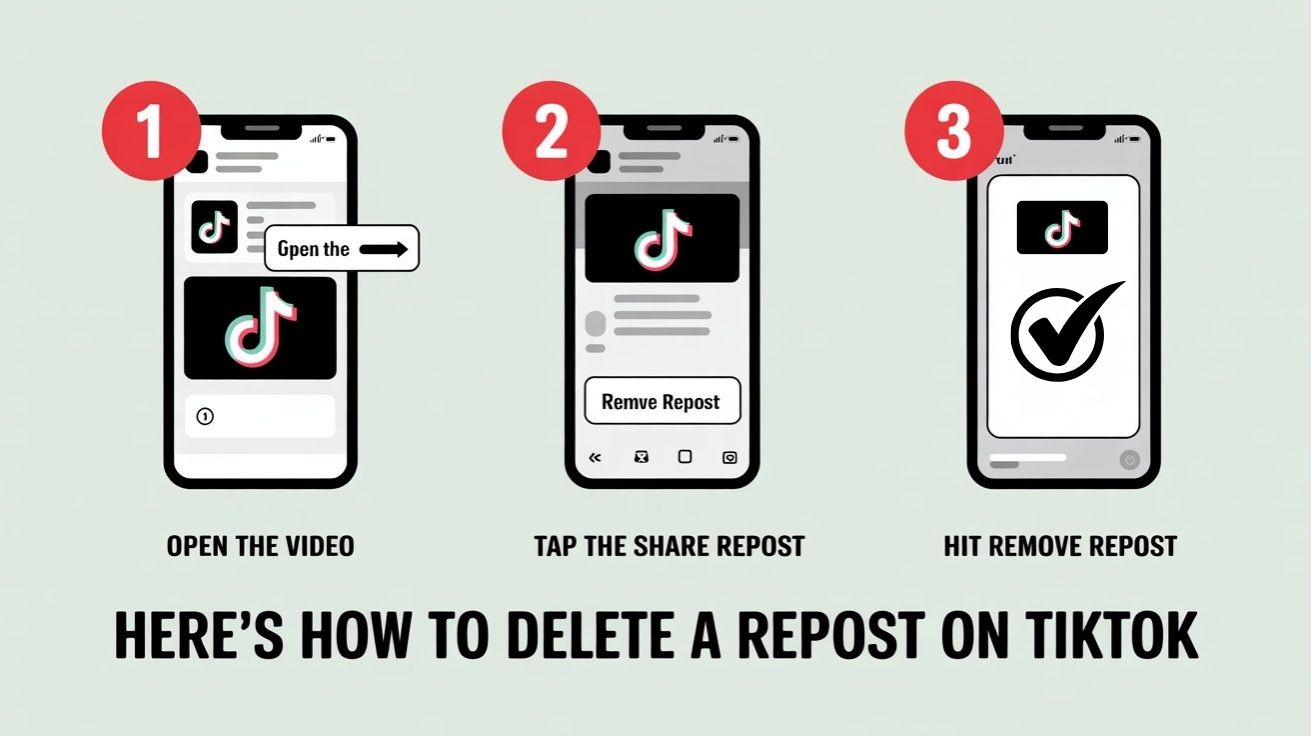
No need to dig through settings. The fastest fix is right on the video itself.
Method 1: Remove Repost Directly from the Video Itself
Open TikTok and find the video you reposted.
Tap the arrow (Share) icon on the right side of the screen.
In the menu that pops up, look for "Remove Repost", it'll be right where the Repost button was.
Tap it. Done.
Your followers won't see it in their feeds anymore. No confirmation screen, no delay, it's gone the moment you tap.
Can't find the video? Go to your Activity tab and scroll back. You should be able to spot it from there. Or just ask a friend who follows you, they'll know exactly which one it was.
Method 2: Manage and Remove Repost Through Your Profile Settings
Got more than one to deal with? This path is a bit slower but useful if you want to review everything:
Tap your Profile icon at the bottom right.
Hit the three-line menu (☰) at the top right corner.
Go to Settings and Privacy → Privacy → Repost.
Manage from there.
How to Delete a Repost on TikTok on iPhone — Step by Step
If you're on an iPhone, everything above applies exactly. TikTok's iOS interface is basically identical to Android for this. Quick version:
Open TikTok on your iPhone.
Find the reposted video.
Tap the Share/Arrow icon on the right.
Tap "Remove Repost" from the bottom menu.
That's genuinely it. Two taps and it's off your account.
How to Delete a Repost on TikTok on Android — Same Steps, Same Result
Android users, you're not missing anything different:
Open TikTok.
Go to the video you reposted.
Tap the Share icon on the right panel.
Hit "Remove Repost."
One thing to check, if you're not seeing that option at all, you might be on the wrong video. TikTok only shows "Remove Repost" on videos you've actually reposted. Double-check you've got the right one.
Want to Hide Reposts on TikTok Without Deleting Them?
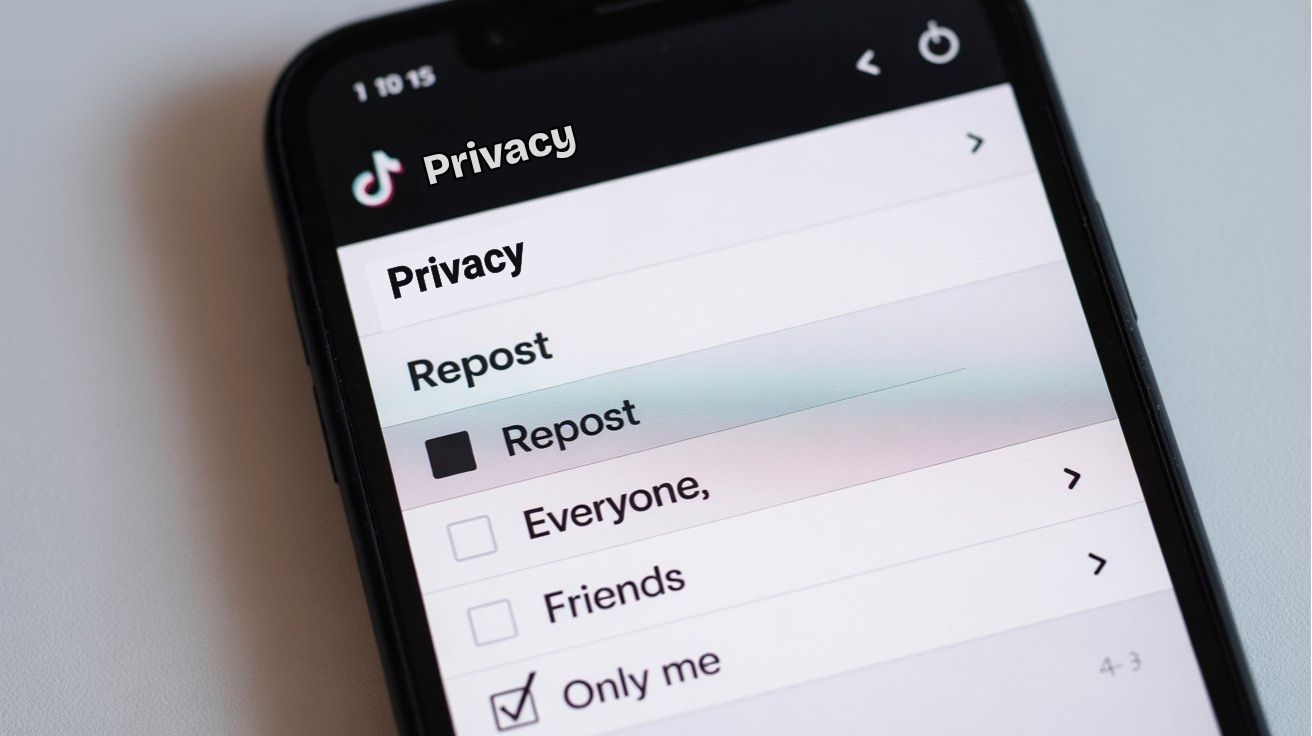
Hiding is a different move from deleting. If you want to stop reposts from showing up in your followers' feeds without going through each one manually, you can adjust who sees them:
Go to your Profile.
Open Settings and Privacy from the top-right menu.
Tap Privacy.
Find the Repost setting and change it — set it to "Only Me" if you want to keep reposting privately, or lock it down entirely.
Keep in mind this doesn't touch your existing reposts. It just controls visibility going forward.
Can You Remove All Reposts on TikTok at Once?
Honestly, no. TikTok hasn't built a bulk-delete option yet, which is frustrating if you've gone repost-happy. Right now, the only way is one at a time:
Find each reposted video.
Tap Share → Remove Repost.
Repeat.
Not fun, but it works. There are third-party tools floating around that claim to do this faster, skip them. They're not officially supported by TikTok and most of them are either scammy or violate TikTok's Terms of Service.
That said — if you just want to stop reposts from showing up without going through each one, there's a quicker workaround. Head to Settings and Privacy → Privacy → Repost and set it to "Only Me." Your existing reposts stay, but no one else will see any new ones. Might be all you actually need.
"Remove Repost" Button Not Showing Up? Here's Why
This confuses a lot of people. A few things to check:
Wrong video: you're probably not on the one you actually reposted.
Outdated app: update TikTok from the App Store or Google Play and try again.
App glitch: force-close TikTok, clear the cache from your phone settings, reopen.
You didn't repost it: sounds obvious, but TikTok only shows that button on videos you've reposted. If it's not there, it's probably just not the right video.
Does Deleting a Repost on TikTok Notify Anyone?
Nope. Not the creator, not your followers, nobody. Removing a repost is completely silent — no notification goes out, no record shows up anywhere. You can undo it without anyone knowing you ever did it in the first place.
Quick Answers — TikTok Repost FAQs
Can I delete someone else's repost of my video?
No, you can't control what other accounts do with your content once it's been reposted. The one workaround is switching to a private account, which prevents people from reposting your videos going forward.
Does removing a repost delete the original video?
Not at all. The original video stays on the creator's profile untouched. You're only removing it from your own activity.
Where do reposts show on my TikTok profile?
Reposts don't show up on your profile grid, anyway. Reposts only appear in your followers' FYP feeds. That's why you often don't realize you've reposted something until someone brings it up.
Can I fully turn off the repost feature on TikTok?
You can't disable it completely, but the Privacy settings let you limit who actually sees your reposts. "Only Me" is about as close as you can get.
What actually happens when you unrepost a TikTok?
It stops showing up in anyone's feed going forward. People who already scrolled past it have already seen it, you can't undo that. But no new eyes will land on it through your account.
So, You Messed Up a Repost? Here's the Final One Thing to Remember
Two taps. Share icon, then "Remove Repost." That's the whole thing.
The only real frustration is TikTok's lack of a bulk-remove option, something a lot of users have been asking for. Until they add it, you're stuck going one by one. Annoying, but manageable.
Reposts are deleted, and the account is clean now. That is the easy part done. What comes next is keeping the channel smooth, active, and growing with real followers, views, and engagement that make the whole effort worthwhile. If your views and account growth are stuck, choosing TokBoostly is the best move, as many successful creators rely on it to handle organic growth.